
How to Create a Daily Task Tracker Using Excel
Build a simple daily task tracker in Excel with priorities, status drop-downs, due dates, conditional formatting and a progress percentage.
Table of Contents
A daily task tracker helps you see what needs doing today, what is overdue and how much you have completed. Excel makes it easy to build one in a few minutes.
1. Step 1: Set up the columns
Create these headings: Task, Category, Priority, Due Date, Status and Notes. Select the range and press Ctrl + T to turn it into a table.
2. Step 2: Add drop-down lists
Use Data > Data Validation > List to create drop-downs:
- Priority: High, Medium, Low
- Status: To do, In progress, Done
3. Step 3: Colour-code priorities and status
Use conditional formatting to colour High priority tasks and grey out tasks marked Done. Your eye goes straight to what matters.
4. Step 4: Highlight overdue tasks
Add a rule with a formula such as =AND($D2<TODAY(), $E2<>"Done") to highlight overdue rows in red.
5. Step 5: Show today’s tasks
Filter the Due Date column to today, or use the FILTER function on a separate sheet to show only today’s open tasks.
6. Step 6: Track progress
Calculate the percentage completed:
=COUNTIF(Table1[Status], "Done") / COUNTA(Table1[Task])
Format it as a percentage and add a simple progress bar with data bars.
7. Make it a habit
- Spend five minutes each morning choosing today’s top three tasks.
- Update status as you go.
- Review at the end of the day and move unfinished tasks forward.
8. Prefer paper or PDF?
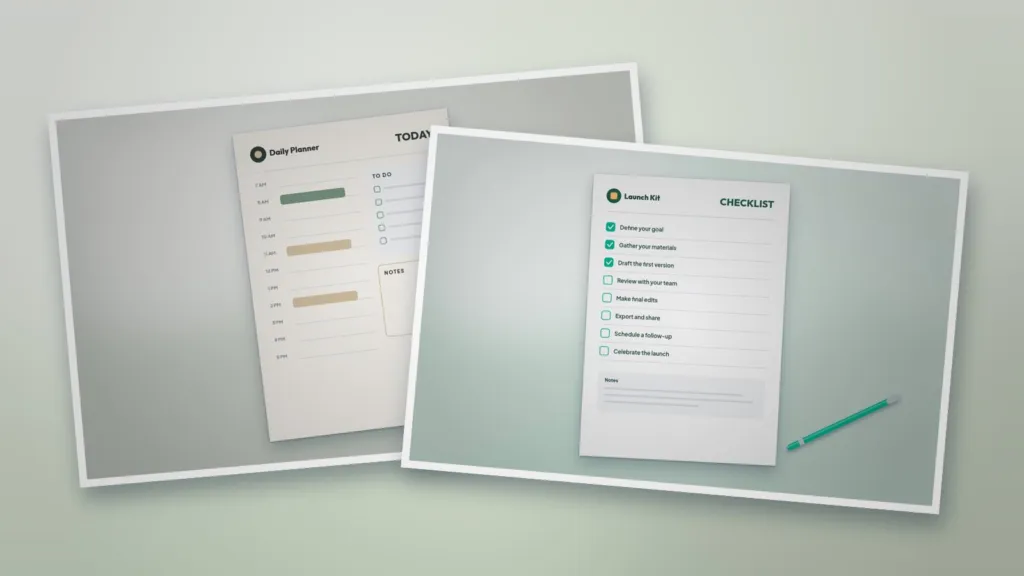
Some people focus better with a printed plan. Our Daily Planner Page and One-Page Checklist work alongside your spreadsheet.
Templates for this article
View all



About the Author
Templateza TeamWe share practical tips, design guides and resources to help you create professional templates for business, print and digital use.